Pairing
Pairing through Telepath is the process of connecting an auto-mcs client to a host. The host is the computer sharing its servers, and the client is the computer you’re using to manage them. It’s quite a simple process, similar to pairing a Bluetooth device.
To access the Telepath menu, open Settings in the bottom right of the main menu, or find Telepath through the Global Search.
Pairing a client
Section titled “Pairing a client”Pairing from the GUI
Section titled “Pairing from the GUI”- On both the server and client, open the Telepath menu
- On the server, enable Share this instance
- On the client, click Pair a Server and enter the IP shown on the server
- Enter the pair code displayed on the server
Pairing from headless
Section titled “Pairing from headless”- On the client, open the Telepath menu
- On the server, enter the command
telepath pair - On the client, click Pair a Server and enter the IP shown on the server
- Enter the pair code displayed on the server
Tips for pairing
Section titled “Tips for pairing”- Pair requests are ignored by default. Navigating to the Telepath screen on the GUI with Share this instance enabled, or running
telepath pairin headless, is required for listening - The client and host must use compatible Telepath API versions (or the same auto-mcs version)
- Pairing codes are randomly generated by the host and expire after one minute
- Three unsuccessful submissions will expire the pair code
- Only one pairing code is generated at a time, and is tied to the requesting client. Further requests are ignored until the pending code expires.
- If a code expires, repeat the pairing process to request another one
Managing connections
Section titled “Managing connections”Once paired, the client displays Manage Instances, while a sharing host displays Manage Users. These represent different sides of the same relationship: an instance is a host saved by your client, while a user is a client authorized to access your host.
Manage Instances (client)
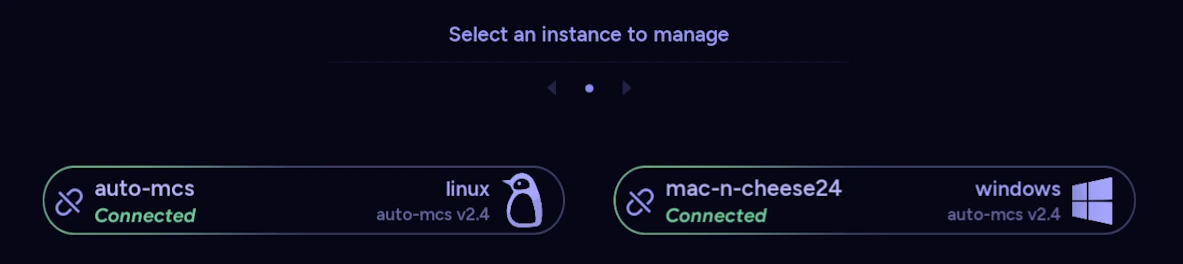
Section titled “Manage Instances (client)”Open Manage Instances to see saved Telepath hosts. Each entry shows its connection state, host operating system, and auto-mcs version:
| Rename a host | Click the name to edit and make the host easier to recognize in the Server Manager |
| Connection status | See whether the saved instance is connected, or has an error |
| Unpair (left-most icon) | Remove the saved instance from your client, after confirmation |
Connection statuses:
Section titled “Connection statuses:”| Connected | The host is connected and can be managed |
| Offline | The host is unreachable |
| API version mismatch | The host’s Telepath protocol cannot be managed by the client. Ensure that both the host and client are using the same version of auto-mcs |
| Authentication failure | Confirm the host hasn’t restricted or unpaired the client. Otherwise, the client’s machine ID likely changed. Unpair the host and attempt to pair again |
If authentication keeps failing, see the Telepath audit logs for rejected requests.
Manage Users (host)
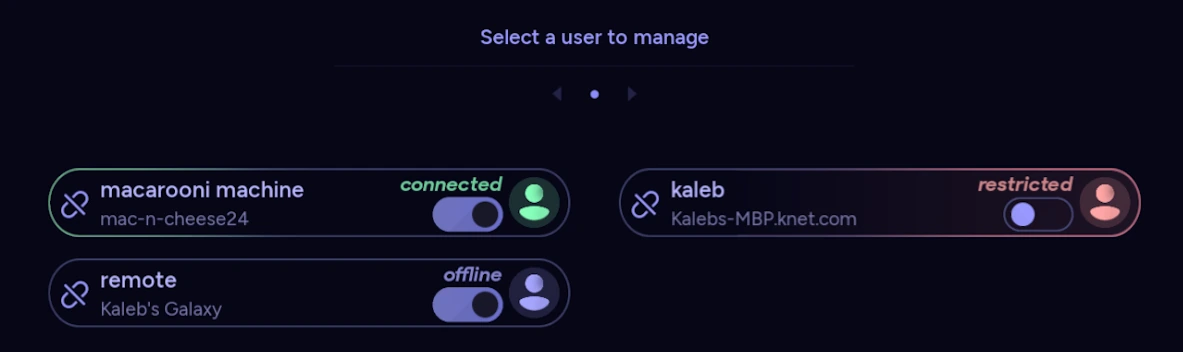
Section titled “Manage Users (host)”Open Manage Users on the host to see paired clients. Entries display the client’s username and machine name, plus whether they’re connected, offline, or restricted. Currently connected clients appear first.
| Access switch | Restrict or restore a client’s ability to authenticate without deleting its pairing. Restriction will block access immediately |
| Unpair (left-most icon) | Revoke the client’s saved authorization; it must complete pairing again to regain access |
| Connection status | Distinguish connected clients from offline and restricted ones |
Restricting an active client also disconnects its session. See Security for how these controls work and what access a paired client receives.
Headless user management
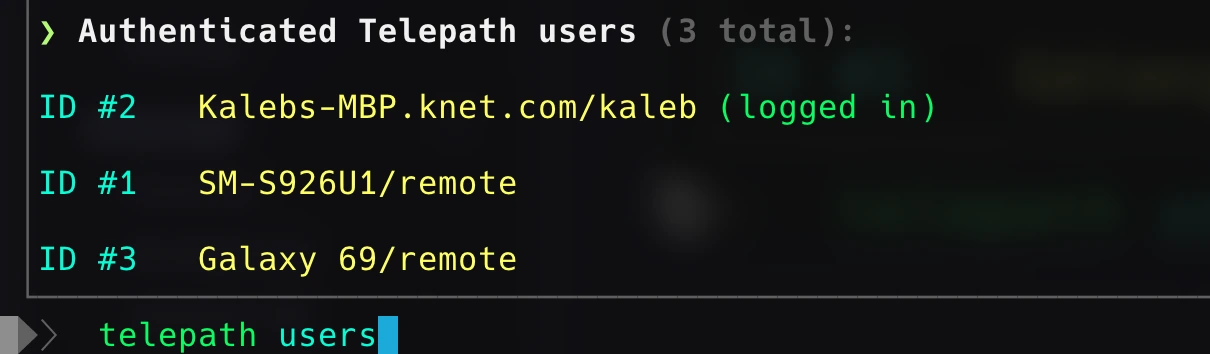
Section titled “Headless user management”From the headless CLI, run telepath users to display authorized users and their numeric IDs. You can then use telepath restrict <#ID> to toggle access, or telepath revoke <#ID> to remove a pairing entirely. telepath reset clears the host’s saved pairings. See the headless command reference for more details.