
Troubleshooting
If a Minecraft server refuses to start or closes unexpectedly, the Console is usually the best place to look first. auto-mcs monitors server processes for crashes, conflicts, and unresponsive shutdowns.

Server logs
Section titled “Server logs”Each server stores its logs inside Servers/<server name>, relative to the auto-mcs app data directory.
logs/latest.log | Current or most recent server log on modern Minecraft versions |
logs/ | Older logs & archives generated by the server distribution |
crash-reports/ | Minecraft crash reports, including reports reconstructed by auto-mcs |
server.log | Legacy server log used before Minecraft 1.7 |
Console output
Section titled “Console output”The Console displays the live server output. You can use filters like Only errors to find warnings and exceptions, then switch to Everything to see what happened before them.
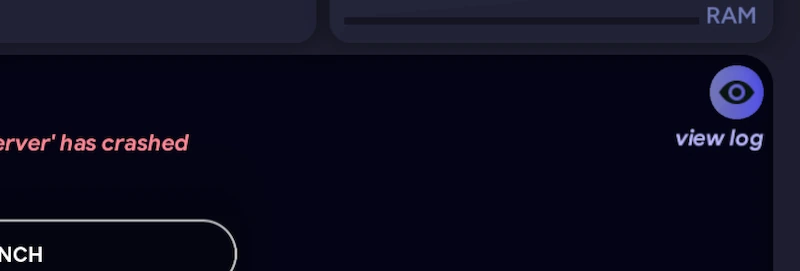
After a server stops, click the view log button in the top right of the Console to open the previous console output. In view mode, you can also use filters to help troubleshoot the problem.
Crash reports
Section titled “Crash reports”When a server closes, auto-mcs checks its exit status, how long it ran, and recent console errors. A non-zero exit code, early shutdown after launch, or fatal log messages can trigger crash detection. Some expected shutdown messages such as a closed socket are ignored to avoid false positives.
If a crash is suspected, auto-mcs first looks for a server-generated crash report. If one doesn’t exist, auto-mcs can reconstruct one from the latest.log or legacy server.log entries, console errors, networking conflicts, or add-on loading errors.
A server that fails before initialization may not generate a useful log file. In this case, auto-mcs can usually figure out the error through these methods and heuristically generate a crash report.
A reconstructed report looks like this:
---- Minecraft Crash Report ----// This report was generated by auto-mcs
Time: 10/18/26, 12:08 AMDescription: Exception in server tick loop
[00:08:27] [main/ERROR]: Incompatible mods found!net.fabricmc.loader.impl.FormattedException: Some of your mods are incompatible with the game or each other!A potential solution has been determined, this may resolve your problem:   - Replace mod 'Example mod' (packtest) 1.0.0 with any version that is compatible with:     - minecraft 26.2More details:   - Mod 'Example mod' (packtest) 1.0.0 requires any version between 1.20.4 (inclusive) and 1.21- (exclusive) of 'Minecraft' (minecraft), but only the wrong version is present: 26.2!  at net.fabricmc.loader.impl.FormattedException.ofLocalized(FormattedException.java:51)  ...
When available, View Crash Log appears beneath the Launch button after a crash. This opens the located or generated crash report in a separate window. If you’re on another screen, auto-mcs will also display a crash notification if detected.
If a crash is detected and automatic back-ups are enabled, auto-mcs will not save a back-up on shutdown.
Common startup problems
Section titled “Common startup problems”| Port already in use | auto-mcs can temporarily choose an available port and restore the original setting on normal shutdown. Check the Console for a networking conflict warning and the port in Settings; see Network Troubleshooting |
| EULA not accepted | Open eula.txt and set eula=true |
| Incompatible mods or plugins | Check Minecraft, loader, and add-on versions. See Troubleshooting add-ons |
| Fails after an update | Check the first new error, then verify add-on compatibility or restore a previous back-up |
| World fails to load | Read the crash report before changing world files. Preserve a back-up before attempting repairs |
| Java error | auto-mcs can install a missing supported Java runtime. Verify the selected version in Settings |
| Server already running | Check for a conflicting Java process; see Process conflicts |
Troubleshooting add-ons
Section titled “Troubleshooting add-ons”Mod and plugin failures can come from an incompatible Minecraft version, loader, missing dependency, or an add-on using code that isn’t supported by the server. There are a few different strategies for rectifying these types of problems, and we’ll go through them here.
Reading errors
Section titled “Reading errors”There’s a lot of noise in these logs and it can be overwhelming to look through at first. It can help to see examples of how to read and troubleshoot some issues that you may run into, and how to filter through them.
Filtering the logs
Section titled “Filtering the logs”To start, you can open the crash report, or the server log, and filter for errors. Use the search bar or Ctrl+F⌘+FCtrl+F to look for keywords like “error”, “fatal”, or “exception”. This will usually isolate which lines to look at first:
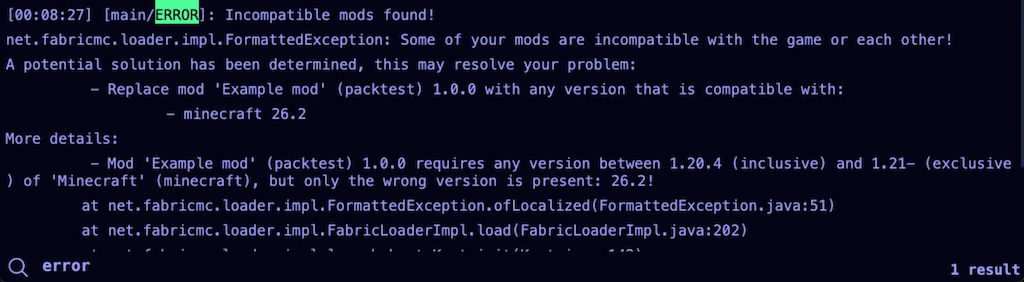
In this case, Fabric is telling us directly that the installed mod “PackTest” requires an update to be compatible with our server. This mod can be updated easily in the add-on manager.

In another case, Paper is telling us to install missing dependencies:
...[Server thread/INFO]: Starting Minecraft server on *:25583[Server thread/INFO]: Paper: Using Java compression from Velocity.[Server thread/INFO]: Paper: Using Java cipher from Velocity.[Server thread/ERROR]: [ModernPluginLoadingStrategy] Could not load 'plugins/uSkyBlock.jar' in 'plugins'org.bukkit.plugin.UnknownDependencyException: Unknown/missing dependency plugins: [WorldEdit, WorldGuard]. Please download and install these plugins to run 'uSkyBlock'. at io.papermc.paper.plugin.entrypoint.strategy.modern.ModernPluginLoadingStrategy.loadProviders(ModernPluginLoadingStrategy.java:82) ~[paper-26.3.jar:26.3-41-a15fed9] at io.papermc.paper.plugin.storage.SimpleProviderStorage.enter(SimpleProviderStorage.java:38) ~[paper-26.3.jar:26.3-41-a15fed9] ...Both “WorldEdit” and “WorldGuard” can be downloaded directly from the add-on manager.

Contextual analysis
Section titled “Contextual analysis”In some instances, the issue isn’t as obvious. Here’s a snippet from a crashed NeoForge modpack. Let’s see what we can find:
...Caused by: java.lang.ClassNotFoundException: The specified mixin 'ca.teamdman.sfm.mixins.StructureTemplateManagerMixin' was not found at MC-BOOTSTRAP/org.spongepowered.mixin@0.16.4+mixin.0.8.7/org.spongepowered.asm.mixin.transformer.MixinInfo.loadMixinClass(MixinInfo.java:1318) ~[sponge-mixin-0.16.4+mixin.0.8.7.jar%2373!/:0.16.4+mixin.0.8.7] at MC-BOOTSTRAP/org.spongepowered.mixin@0.16.4+mixin.0.8.7/org.spongepowered.asm.mixin.transformer.MixinInfo.<init>(MixinInfo.java:857) ~[sponge-mixin-0.16.4+mixin.0.8.7.jar%2373!/:0.16.4+mixin.0.8.7] ... 36 more[main/INFO] [com.cupboard.Cupboard/]: Loaded config for: structureessentials.json[main/ERROR] [net.neoforged.fml.common.asm.RuntimeDistCleaner/DISTXFORM]: Attempted to load class net/minecraft/client/gui/screens/Screen for invalid dist DEDICATED_SERVER[main/WARN] [mixin/]: Error loading class: net/minecraft/client/gui/screens/Screen (java.lang.RuntimeException: Attempted to load class net/minecraft/client/gui/screens/Screen for invalid dist DEDICATED_SERVER)[main/WARN] [mixin/]: @Mixin target net.minecraft.client.gui.screens.Screen was not found relics.mixins.json:ScreenMixin from mod relics[main/WARN] [mixin/]: Error loading class: net/minecraft/client/renderer/entity/PhantomRenderer (java.lang.ClassNotFoundException: net.minecraft.client.renderer.entity.PhantomRenderer)[main/WARN] [mixin/]: @Mixin target net.minecraft.client.renderer.entity.PhantomRenderer was not found deeperdarker.mixins.json:PhantomRendererMixin from mod deeperdarker...The error in this crash appears to be net/minecraft/client/gui/screens/Screen for invalid dist DEDICATED_SERVER. Now, what in the world does that mean?
A quick internet search for this error reveals in Fabric’s yarn mappings that this class is the foundation for loading SplashScreen, CreditsScreen, DeathScreen, etc. There’s no death screen on a server, so this crash was from attempting to load a client-side only class. This can be caused by running a strictly client-side only mod on a server, or a server-side mod incorrectly referencing client code. In this case, it appears to be the former.
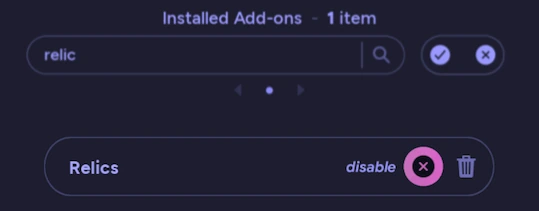
Now, which mod caused this? Searching through the log for this screen class reveals that “Relics” is trying to load it ...gui.screens.Screen was not found ... from mod relics. In this case, the solution is to simply disable or delete the “Relics” mod in the add-on manager.
Isolating the add-on
Section titled “Isolating the add-on”An alternative approach is to test add-ons in groups, or individually. The add-on manager lets you disable mods or plugins without deleting their .jar files. This process will usually find the cause, however, it’s quite time consuming. There are two useful ways to isolate what is causing the crash:
Start with the current configuration:
- Disable a suspected add-on and launch the server again
- If the original error remains, restore that add-on and test another. If it disappears, re-enable the suspect to confirm
- Check the identified add-on for an incompatible version, missing dependency, or conflict with another mod
Alternatively, start with everything disabled:
- Stop the server, then select Disable All
- Launch the server. If the original error disappears, enable one add-on and test again
- Continue enabling add-ons until the failure returns, then disable the last one and retest to confirm it
For large collections, you can try disabling half of the suspected add-ons at a time to narrow down the failure more quickly.
Unresponsive servers
Section titled “Unresponsive servers”Clicking Stop sends Minecraft the normal stop command, allowing it to save world data and close its services. This is considered a “graceful shutdown”.
This button will change to Kill after one second as a fallback. However, this doesn’t mean the process is hung. See Console controls for normal stop and restart behavior. Kill terminates the process rather than sending Minecraft a normal shutdown command.
Additionally, you can run !info process in the Console to view the process auto-mcs launched. This can be used to retrieve the PID, Java runtime, vendor, and the executable path. You can compare the PID and executable with Task Manager, Activity Monitor, or ps/kill to troubleshoot or kill the running process.
Deadlock detection
Section titled “Deadlock detection”When Minecraft reports that the server is stopping, or has failed to start, auto-mcs starts monitoring the process for signs that it isn’t making progress during shutdown:
| Monitoring time | At least 15 seconds after monitoring begins |
| Network | Server port unreachable for 3 seconds |
| CPU and memory | CPU at or below 0.1%, with less than 2 MiB memory variation between samples, for 10 seconds |
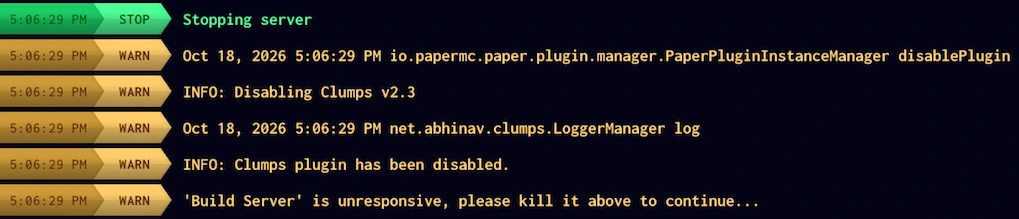
All three checks must indicate inactivity while the process is still running. Detection is skipped during a restart or an active back-up. If a deadlock is suspected, auto-mcs displays '<server>' is unresponsive, please kill it above to continue... in the console, and changes the stop control to Kill.
Process conflicts
Section titled “Process conflicts”A server may remain running from being launched outside auto-mcs. Attempting to start another instance from the same directory can cause DirectoryLock$LockException: .../world/session.lock: already locked, or risk world corruption.
Before launching, auto-mcs checks for Java processes that spawned from the server’s directory. If one is found, a Server Already Running warning will appear. This pop-up displays the conflicting PID and offers to terminate the process first. If cancelled, the server will not be launched.
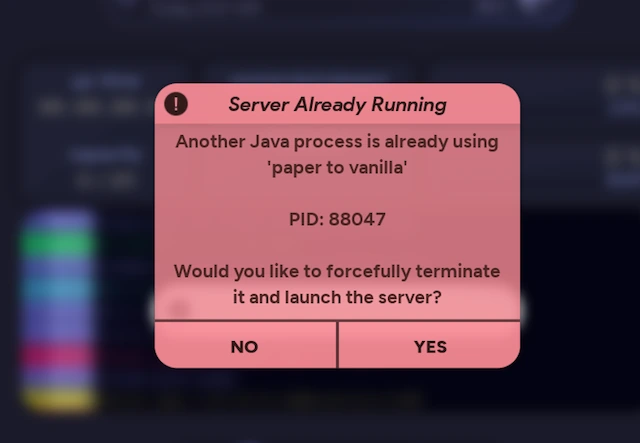
In headless mode, auto-mcs will refuse to launch and report the PID instead.
During a shutdown or a handled app crash, auto-mcs attempts to stop its managed servers. An operating system kill, or power failures can bypass cleanup, so this launch check also catches processes and locks left behind by a previous session.