
Console
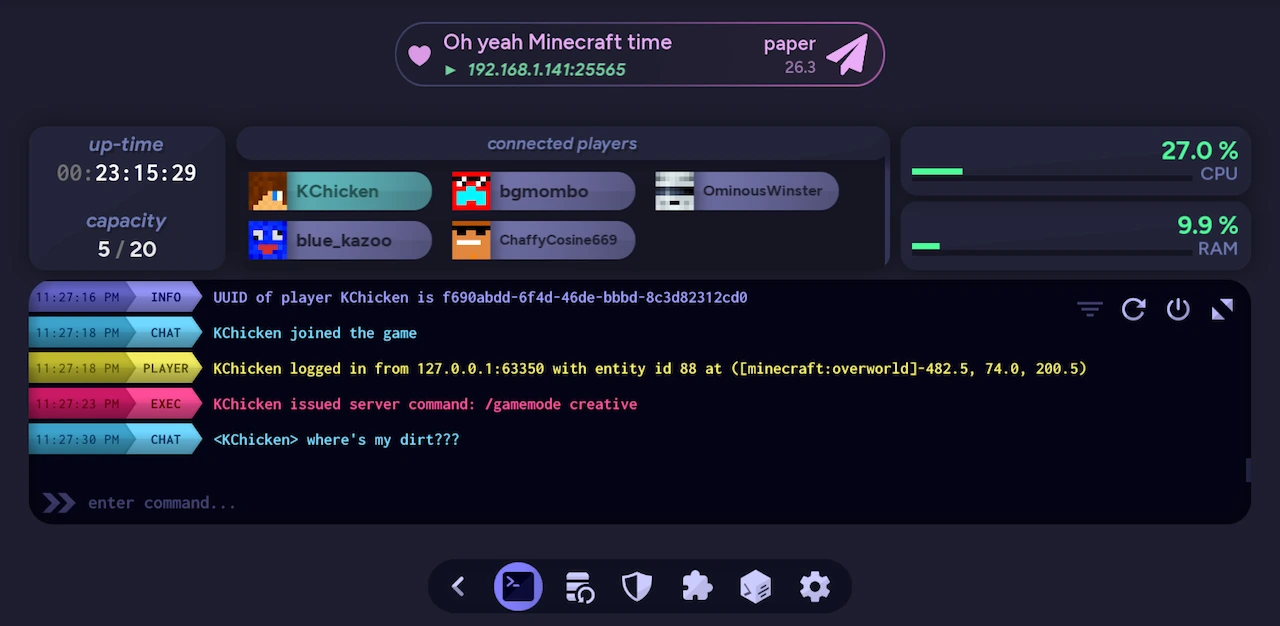
The Console is the main panel on a server’s Launch screen. It shows startup messages, game events, warnings, chat, and command output. When the server is running, you can issue commands, manage connected players, and monitor CPU, RAM, and uptime without leaving auto-mcs.
Console controls
Section titled “Console controls”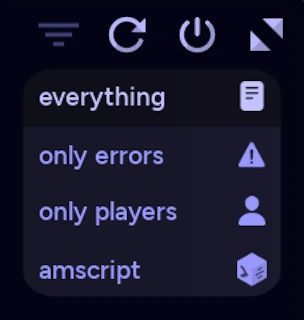
The buttons in the top right of the console change depending on whether the server is running or stopped.
| Launch | Start a stopped server. You can also press EnterEnterEnter to trigger a launch |
| Stop | Request a normal server shutdown. The button changes to Kill after one second |
| Kill | Force-terminate the server if it hasn’t shut down normally. This can interrupt saves, so use it only when necessary |
| Restart | Restart a running server |
| Filter | Select which types of messages appear in the console |
| Maximize / Minimize | Expand the console to fill the application, or return to the normal layout |
| View Log | When available for a stopped server, open the console output from its previous run; see Server Troubleshooting |
Filters
Section titled “Filters”The filter button has four views. Important lifecycle messages like startup, shutdown, and critical error events remain visible even when a filter is active.
| Everything | All console events and messages |
| Only errors | Warnings, errors, and critical messages |
| Only players | Player join/leave and chat messages |
| amscript | amscript and command execution messages |
Filtering changes which lines are displayed, not the events produced by the server.
Console output
Section titled “Console output”Each console entry shows its timestamp and message type on the left, followed by the message itself. Long messages are shortened to a single line so the console stays easy to scan. Hover over a shortened message to reveal an arrow, then click the text to expand it. The full message wraps onto additional lines, and clicking it again collapses it.
The timestamp and message type on the left also serve as the selection area. This keeps selecting lines separate from expanding their text.
| Left-click a shortened message | Expand the full line, or collapse it again |
| Left-click the timestamp/type header | Select or deselect that line |
| Left-click + drag from the header | Select a range of console lines |
| Right-click any line | Copy the complete entry immediately, or copy the selected lines if a selection is active |
Expanded lines keep their state while scrolling, resizing the window, or changing filters. Copied entries include the timestamp and message type, even when their text is collapsed. You can also use keyboard shortcuts to select, copy, or clear console output.
Console input
Section titled “Console input”Click the field at the bottom of the console to type a server command. Press EnterEnterEnter to submit it. You can also use Tab⇥Tab to complete a connected player’s username, or ↑↑↑ / ↓↓↓ to browse commands you’ve entered previously.
See keyboard shortcuts, and the command reference for more details.
Player list
Section titled “Player list”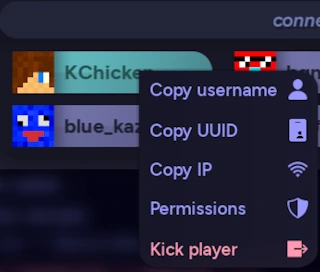
When players are connected, they appear in the player list above the console. Each entry displays the player’s username and icon. Additionally, players with operator access will show up at the top with a blue background.
| Left-click a player | Open their details in the Access Control Manager |
| Right-click a player | Open the context menu to copy player details, manage permissions, or kick the player |
Context Menu
Section titled “Context Menu”| Copy username | Copy the selected player’s username |
| Copy UUID | Copy their Minecraft UUID |
| Copy IP | Copy their connection IP address |
| Permissions | Open the player’s details and access rules in Access Control |
| Kick player | Disconnect the selected player from the server |
More advanced bans, operator permissions, and whitelist management are available through Access Control.
Keyboard shortcuts
Section titled “Keyboard shortcuts”The shortcuts below apply on the Launch screen. Modifier keys are shown for the detected operating system. Some keys only work when the console input isn’t focused or a popup isn’t open.
| Shortcut | Action |
|---|---|
| EnterEnterEnter | Launch the server when it is stopped and the command input isn’t focused |
| Tab⇥Tab | Focus the command input while a server is running |
| Tab⇥Tab (in command input) | Autocomplete a connected player’s username |
| ↑↑↑ / ↓↓↓ (in command input) | Browse previously submitted commands |
| Ctrl+Backspace⌘+⌫Ctrl+Backspace (in command input) | Delete the word to the left of the cursor |
| EnterEnterEnter (in command input) | Send the current command |
| FFF | Toggle console fullscreen while a server is running |
| EscEscEsc | Close a context menu, exit fullscreen or the previous-log view, or return to the previous screen |
| Ctrl+Q⌘+QCtrl+Q | Request a server stop |
| Ctrl+Shift+R⌘+⇧+RCtrl+Shift+R | Restart the running server |
| Left-click + drag from a timestamp/type header | Select a range of console lines |
| Ctrl+A⌘+ACtrl+A | Select all displayed console lines |
| Ctrl+C⌘+CCtrl+C | Copy selected console lines |
| Ctrl+D⌘+DCtrl+D | Clear the console selection |
| Right-click (on any console line) | Copy that line, or copy the current selection |
Command reference
Section titled “Command reference”For all available Minecraft commands, view Minecraft’s command list. Note that not all of these are supported on older versions, and you may need to run help in the console to see which ones are available.
In addition to normal Minecraft commands, auto-mcs includes a few custom commands for managing the server through the console or in-game chat. These are provided by the built-in amscript library and work on any server, even in Vanilla. Additionally, you can add custom commands using amscript.
Most of the default commands require operator permissions. !help is available to everyone, but only shows commands that the player has permission to use. These commands will work in the console, or from the in-game chat.
| Command | Description | Permission |
|---|---|---|
!help [page] | View the available auto-mcs commands, displayed six at a time. Specify a page number to see more | Anyone |
!help <search> | Search the command directory by command name or description | Anyone |
!info [help] | View the available !info categories | Operator |
!info / !info status | View general server information; version, address, uptime, player count, and performance | Operator |
!info process | View the running Java process PID, runtime, version, vendor, and paths | Operator |
!info network | View the server’s active address and port, private address, public address, and port assignment | Operator |
!stop [seconds] | Stop the server immediately, or after an optional delay in seconds | Operator |
!restart [seconds] | Restart the server immediately, or after an optional delay in seconds | Operator |
!backup [help] | Display all available back-up commands | Operator |
!backup status | Show the most recent back-up, total number of back-ups, disk usage, and configured limit | Operator |
!backup save | Create a complete back-up of the server immediately | Operator |
!acl [help] | Display the access control commands | Operator |
!acl ops | List the players with operator permissions | Operator |
!acl bans | List banned players, IP addresses, and subnet rules | Operator |
!acl whitelist | Show whether the whitelist is enabled and list allowed players | Operator |
!ams [help] | Display the built-in amscript commands | Operator |
!ams status | Show the amscript version and the currently enabled and disabled scripts | Operator |
!ams enable <script> or !ams enable all | Enable a specific script by name, or all installed scripts | Operator |
!ams disable <script> or !ams disable all | Disable a specific script by name, or all installed scripts | Operator |
!ams reload | Recompile and initialize the enabled scripts | Operator |
!ams clearpst | Clear all persistent amscript configuration data. This cannot be undone | Operator |