
Telepath
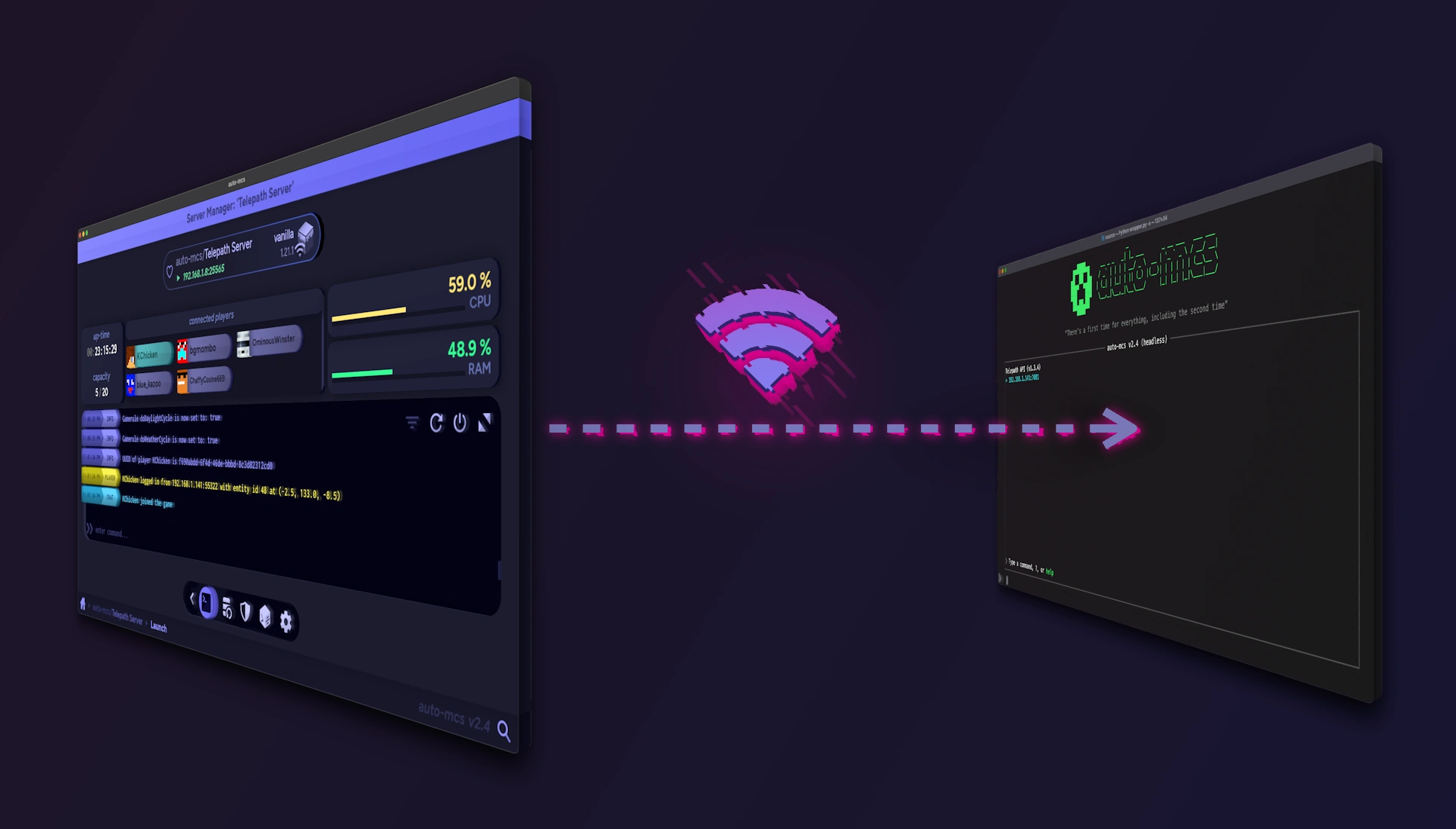
If you’re away from home or wish to access a server on another computer, Telepath lets you remotely manage auto-mcs instances transparently through the same interface you’re used to. You can connect to another computer on your network, a friend’s instance of auto-mcs, or even a headless VPS.
How it works
Section titled “How it works”Telepath allows you to seamlessly pair instances of auto-mcs together. One instance acts as the host sharing its servers; another acts as the client connecting to that host. A desktop installation of auto-mcs can act as either a host, client, or both. After pairing, remote servers appear in the Server Manager alongside local ones, denoted with a wireless icon and the host’s nickname.

In more technical terms, Telepath is a REST-ful API used to communicate with other instances of auto-mcs via web endpoints. By default, Telepath communicates HTTP traffic over TCP port 7001. Most of the functionality is abstracted and happens behind the scenes. Logins are automatic, and interaction is initiated by pairing, described in detail here.
Although auto-mcs uses web-based endpoints and protocols for remote access, the GUI itself is designed to run as a native desktop app for each platform. Telepath is not meant to be used from a browser, and each client requires a local installation of auto-mcs.
Transparency
Section titled “Transparency”Remote servers share an almost identical management experience to local ones. The Server Manager presents them as ordinary server entries, but their files, Java installations, memory, storage, and running processes belong to the remote computer. A remote server will continue running after a client disconnects if the host process is still running.
The only real difference is that the host’s filesystem isn’t mounted over the network, so there’s no direct access to the server directory. Some buttons are hidden or changed that would normally access the filesystem; actions such as opening a directory use direct downloads or restricted file transfers instead. Files needed for remote operations are transferred automatically where supported. For example, editing a remote config or amscript downloads a temporary copy to the client and sends the saved changes back. It’s recommended to use SFTP for direct arbitrary file transfers to the Telepath host.
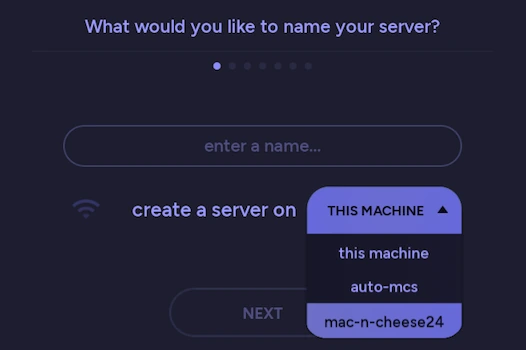
Additionally, all Telepath clients still support local operations. For instance, when creating, importing, or cloning a server, a Telepath host dropdown is presented to select the destination. This will automatically select the last host you’ve interacted with, if reachable. However, it’s important to verify the host to ensure the action is going where you want.
Networking
Section titled “Networking”By default, Telepath communicates over TCP port 7001 on all interfaces. Clients can connect to the host’s reachable IP address, or domain. You can adjust the Telepath host address and port in app-config.json.
On a local network, use the host’s LAN address. To connect across the internet, the host must be reachable through appropriate network routing such as port forwarding, or a private VPN. Alternatively, with a playit.gg premium account, it’s possible to set up a custom TCP tunnel.
auto-mcs will attempt to locate the best-fit interface address, and it will be displayed in blue.
Because the built-in host uses HTTP, it’s advised to protect public remote access with a VPN or a correctly configured HTTPS reverse proxy rather than exposing the API directly. See Security for more details.
Firewall
Section titled “Firewall”Additionally, be sure that the host’s firewall allows for TCP connectivity over the Telepath port. For reference:
-
On Windows, you can add an inbound rule from PowerShell:
Terminal window New-NetFirewallRule -DisplayName "Telepath" -Protocol TCP -LocalPort 7001 -
On Linux, ports usually aren’t blocked by default. Ubuntu and derivatives may require allowing a rule through
ufw:Terminal window sudo ufw allow 7001/tcp -
On macOS, ensure auto-mcs has access to your local network. This is required for both macOS clients and hosts
Connectivity Test
Section titled “Connectivity Test”The easiest way to check that your Telepath host is reachable is by pinging and querying the API’s status endpoint from the prospective client:
ping 1.2.3.4curl -fsS http://1.2.3.4:7001/telepath/check_status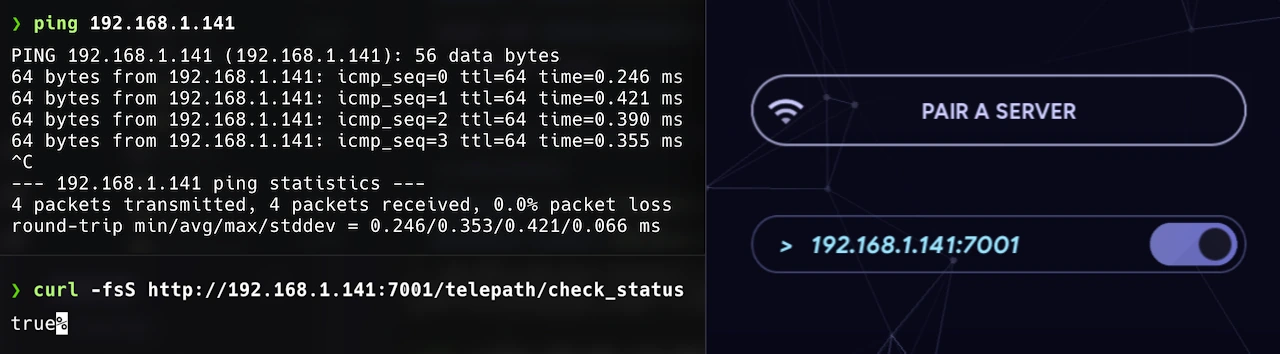
Sometimes a ping won’t respond if blocked by a firewall, but it’s a useful test in most cases to rule out Layer 3 connectivity issues. If the /telepath/check_status endpoint responds true, your Telepath host is ready for pairing from the tested client.
Headless hosts
Section titled “Headless hosts”auto-mcs can act as a Telepath host without requiring a desktop environment by running in headless mode. See Headless for launching and operating the terminal interface, or Docker for running headless in a browser-based terminal.
For all Telepath related commands, see the headless command reference for more details.