
Using the IDE
The amscript IDE (Integrated Development Environment) is a built-in editor for creating and modifying .ams scripts inside auto-mcs. It provides a variety of features like syntax highlighting, auto-complete, intelligent editing controls, folding, automatic linting/error detection, and much more. It also supports remote editing through Telepath.
To open the IDE, select amscript from a server’s taskbar, then choose Edit on an installed script, or Create to start a new one. The IDE opens in a separate window and can work with multiple scripts at once.
Workspace
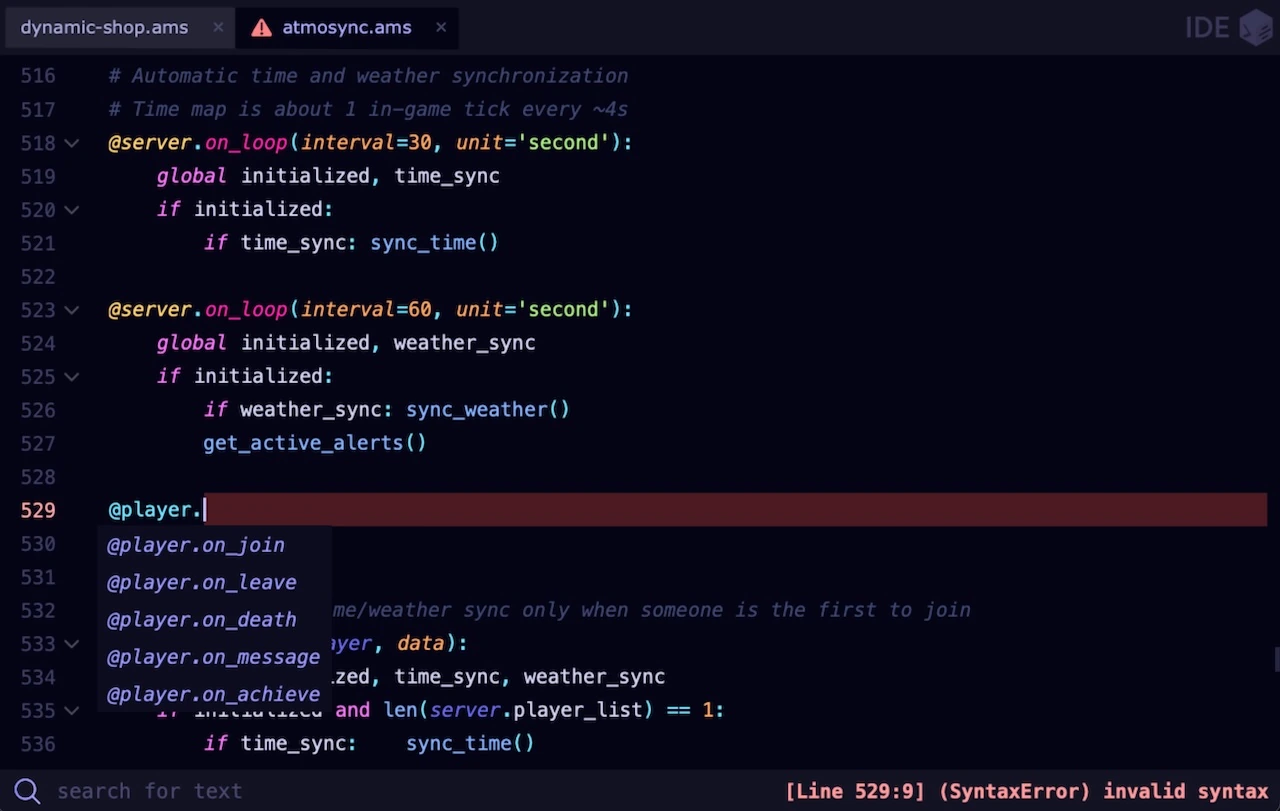
Section titled “Workspace”Each script opens in a tab displaying its filename. You can reorder tabs by dragging, or close them with X. Telepath scripts display a remote icon, and scripts with detected syntax errors show an error indicator. Closing a tab saves its contents, and closing the last tab exits the IDE.
The editor highlights amscript syntax including events, API objects, strings, comments, and header metadata. The left gutter provides line numbers, the active line, folding arrows, and indicators for search results and errors. The scrollbar is on the right, while the bottom field displays search results or the cursor’s line and character position.
The IDE remembers window position, size, and font preferences, and caches cursor position and folding state when available. Click a line number to move to its start; double-click to select the line, or Shift-click to extend a selection.
Editing experience
Section titled “Editing experience”Line and selection controls
Section titled “Line and selection controls”| Action | Behavior |
|---|---|
| Duplicate | Ctrl+D⌘+DCtrl+D copies the current line below itself |
| Comment | Ctrl+/⌘+/Ctrl+/ toggles comments for the current line or selection, respecting indentation and unfolding affected code if needed |
| Move | Drag selected text to relocate it; dragging near the editor edge scrolls while selecting |
| Copy | Ctrl+C⌘+CCtrl+C copies the current line if no text is selected |
| Paste | Converts tabs to spaces and adjusts multiline indentation when appropriate |
| Undo / Redo | Reverses or reapplies changes, including line and selection edits |
Smart intent
Section titled “Smart intent”The workspace uses four-space indentation. It will replace tabs from pasting, and automatically indents after a block opening (:). It also adjusts indentation after control statements such as return, break, continue, pass, raise, and yield. It will expand empty (), [], or {} into indented multiline blocks, and continues # prefixes inside script metadata headers.
Use Tab⇥Tab / Shift+Tab⇧+⇥Shift+Tab to indent or unindent selected lines. Backspace can remove a four-space indentation level, while Ctrl+Backspace⌘+⌫Ctrl+Backspace deletes the preceding word or indentation. Shift+Enter⇧+EnterShift+Enter inserts a new line while retaining the original cursor position.
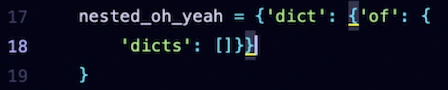
Typing (, [, {, ', or " will automatically insert the matching closer. The editor positions your cursor inside the pair, skips existing closing symbols when appropriate, removes paired symbols together with Backspace, and recognizes triple-quoted strings. Selecting an expression before typing an opening symbol will wrap the selection, and selecting a matched delimiter can also replace its surrounding pair, including switching between quote or parenthesis styles.
Auto-complete
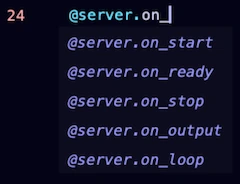
Section titled “Auto-complete”Type @ for event templates, or a supported object prefix followed by . to browse its API. They come from available amscript objects, with partial and fuzzy matching. Imported third-party Python packages aren’t indexed by this system.
Choosing an event inserts its complete declaration and an indented body, such as:
@player.on_join(player, data):Other event templates include their configurable arguments. Completing a method inserts parentheses and positions the cursor for arguments; some message and command methods provide an editable f-string starter. Select a suggestion by mouse or with ↑↑↑ / ↓↓↓ and Tab⇥Tab / EnterEnterEnter where supported. Use EscEscEsc to dismiss the menu. See the API reference for accepted parameters.
Context menu
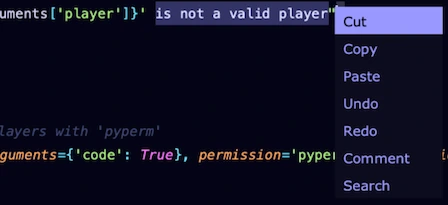
Section titled “Context menu”Right-click opens a selection-aware context menu. With text selected, it offers Cut, Copy, Paste, Undo, Redo, Comment, and Search; without a selection, it offers Paste, Undo, Redo, Comment, Zoom in, Zoom out, and Help.
Search uses the selected text as the query; Comment toggles the current line or selected lines; Zoom changes the editor font size; and Help opens the amscript documentation. The menu supports mouse and keyboard selection and closes when you click elsewhere or switch tabs.
Navigation and search
Section titled “Navigation and search”Code folding and delimiters
Section titled “Code folding and delimiters”Click a gutter arrow to collapse or expand a Python or amscript block. Nested regions fold independently, and you can expand or collapse all regions with the shortcuts below. Folding hides code without modifying it or affecting execution; the editor also protects hidden content during editing and remembers fold states when available.
A collapsed region displays a special indicator when it contains a search match or syntax error. The gutter highlights the active line, search matches, and error lines. When the cursor is beside (), [], or {}, the editor finds and highlights its matching delimiter—even inside nested expressions—while avoiding false matches inside strings and comments.
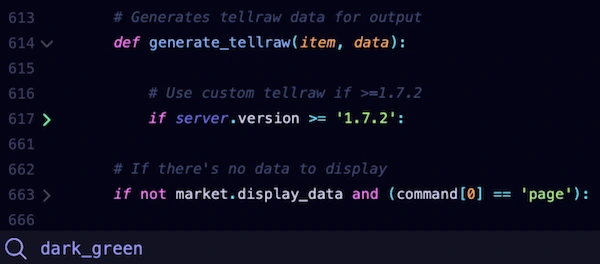
Search and replace
Section titled “Search and replace”Ctrl+F⌘+FCtrl+F opens search. Matches are highlighted as you type, with matching line numbers and a result count; search is case-insensitive and can be scoped to selected text. Use EnterEnterEnter / Shift+Enter⇧+EnterShift+Enter to move forward or backward through results, wrapping at either end. Ctrl+Shift+S⌘+⇧+SCtrl+Shift+S searches directly for a selected expression.
Prefix a query with re: for regular-expression search, such as re:server\.(log|broadcast). This affects searching only: replacement doesn’t support regex capture-group substitutions.
Ctrl+H⌘+⇧+HCtrl+H reveals a second field for the replacement text. Navigate and replace individual matches, or select Replace All. Search and replace are part of the editor rather than a separate window.
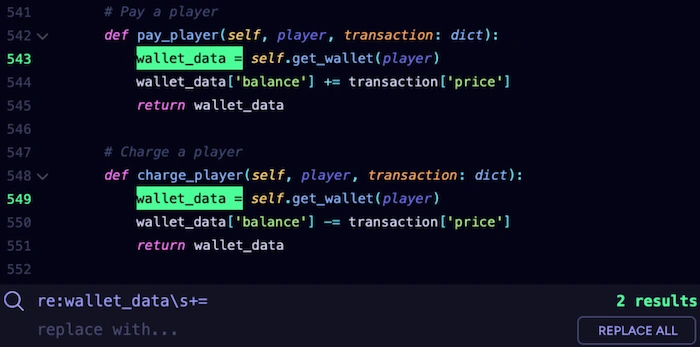
Saving and errors
Section titled “Saving and errors”Saving and reloading
Section titled “Saving and reloading”The IDE saves automatically after a short editing pause, on loss of window focus, and when a tab or the IDE closes. Use Ctrl+S⌘+SCtrl+S to save immediately. Saving updates the .ams file but doesn’t recompile an enabled script; use Reload Scripts in the Script Manager or !ams reload to apply changes without restarting Minecraft. See Reloading for more details.
Error detection
Section titled “Error detection”Automatic source validation highlights syntax errors in the code and gutter, marks the affected tab, and displays a message near the bottom-right of the editor. Click the message to jump to the reported location; folded blocks containing errors are marked as well.
Valid syntax doesn’t guarantee error-free execution. Runtime exceptions appear in the server Console, where amscript reports the exception and attempts to map generated Python back to the original .ams source line. The IDE checks syntax without executing your script; see Runtime errors.
Editing over Telepath
Section titled “Editing over Telepath”A script opened through Telepath is downloaded as a temporary local copy and marked with a remote icon. The same editing features work locally, and saving uploads and imports the edited script on the host. Reload amscript on that host to apply it to a running server.
Keyboard shortcuts
Section titled “Keyboard shortcuts”| Shortcut | Action |
|---|---|
| Ctrl+S⌘+SCtrl+S | Save |
| Ctrl+C⌘+CCtrl+C / Ctrl+V⌘+VCtrl+V / Ctrl+X⌘+XCtrl+X | Copy, paste, cut |
| Ctrl+A⌘+ACtrl+A | Select all |
| Ctrl+Z⌘+ZCtrl+Z / Ctrl+R⌘+RCtrl+R / Ctrl+Y⌘+YCtrl+Y | Undo / redo |
| Ctrl+D⌘+DCtrl+D | Duplicate current line |
| Tab⇥Tab / Shift+Tab⇧+⇥Shift+Tab | Indent / unindent selection |
| Ctrl+/⌘+/Ctrl+/ | Toggle comments |
| Ctrl+Backspace⌘+⌫Ctrl+Backspace | Delete preceding word or indentation |
| Ctrl+F⌘+FCtrl+F / Ctrl+H⌘+⇧+HCtrl+H | Search / toggle replacement field |
| Ctrl+Shift+S⌘+⇧+SCtrl+Shift+S | Search for selected text |
| EnterEnterEnter / Shift+Enter⇧+EnterShift+Enter in search | Next / previous match |
| ↑↑↑ / ↓↓↓ in completion | Navigate suggestions where supported |
| Tab⇥Tab / EnterEnterEnter in completion | Accept suggestion |
| Ctrl+Shift+=⌘+⇧+=Ctrl+Shift+= / Ctrl+Shift+-⌘+⇧+-Ctrl+Shift+- | Expand / collapse folded regions |
| Ctrl+=⌘+=Ctrl+= / Ctrl+-⌘+-Ctrl+- | Increase / decrease font size |
| EscEscEsc | Close active completion, menu, or search/replace field |
| Right-click | Open context menu |