
Modpacks
Modpacks are groups of mods curated to work well with each other for a unique and tailored Minecraft experience. Generally, they provide an all-in-one package that contains the mods and configuration files needed for a particular setup.
To get started, choose Modpack from the create server menu. You can either download a pack through the built-in search or install one from a file.
Download a modpack
Section titled “Download a modpack”The easiest option is to select Download a Modpack and search for a pack directly in auto-mcs. The built-in search includes modpacks from both Modrinth and CurseForge.
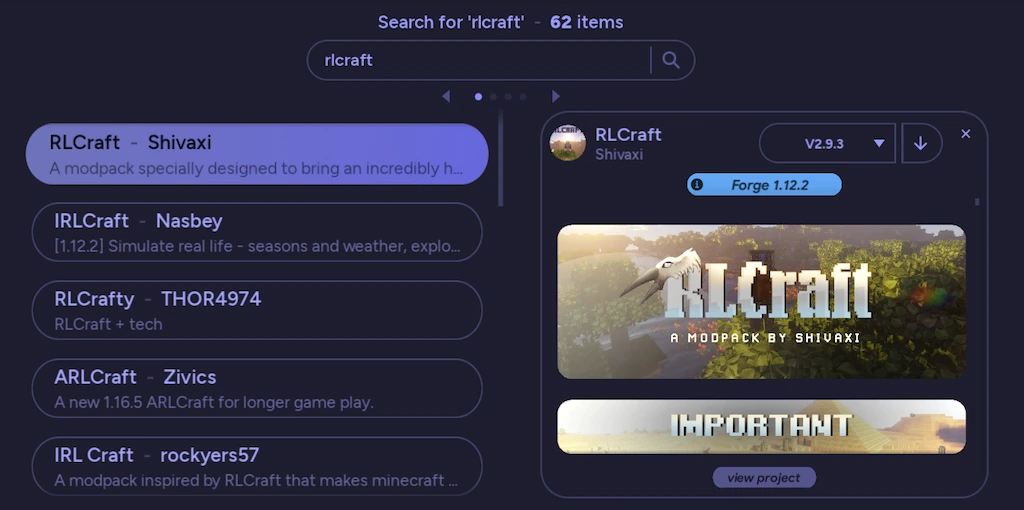
Select a modpack, choose the release you want from the drop-down, and start the installation by clicking the download icon. auto-mcs will download the selected pack and prepare a new server using its Minecraft version and mod loader.
Install from a file
Section titled “Install from a file”If you’ve already downloaded a modpack, you can select a local .zip or .mrpack file instead.
If a modpack crashes during startup, see Troubleshooting add-ons for identifying incompatible mods and reading the errors.
.mrpackfiles are Modrinth modpack archives. They include metadata describing the Minecraft version, mod loader, and required files..zipfiles are commonly used for CurseForge exports and server packs. auto-mcs can recognize several packaging formats, including packs with manifests, installer configuration, or launch scripts.
Select the archive and continue. You don’t need to extract it yourself; auto-mcs will unpack the contents and inspect the available metadata.
How it works
Section titled “How it works”When installing a modpack, auto-mcs attempts to determine the correct Minecraft version, mod loader, and loader build from the archive. This includes support for Forge, NeoForge, Fabric, and Quilt packs.
For recognized formats, it can read the Modrinth or CurseForge manifest, download the required files, and install the appropriate server software and Java runtime. If the archive doesn’t contain a standard manifest, auto-mcs can also inspect launch scripts, configuration files, and mod filenames to determine the required setup.
The application then prepares the server configuration and creates an initial back-up. Some packs may require additional setup, and files that aren’t available for automatic download may need to be installed manually. Some packs also include a README, which will be presented in a popup after installation if detected.
After installation
Section titled “After installation”Once the modpack is installed, auto-mcs will open it in the Server Manager. From there, you can launch the server, manage the installed mods, configure settings, and create or restore back-ups as you would with any other server.
Updates
Section titled “Updates”Modpacks downloaded through auto-mcs’s built-in Modpack Manager can be tracked for new releases. Imported .mrpack files generally support updates too, as long as auto-mcs can identify the original pack and its version on Modrinth. Some CurseForge .zip and server packs don’t include enough metadata to identify their exact release, so automatic update detection isn’t always possible.
For supported packs, open Settings in the Server Manager and find Updates. When a newer release is available, select Update to the displayed version, or enable Automatic updates. auto-mcs downloads and installs the new modpack as a whole, instead of updating each mod separately, and creates back-ups during the process. The server must be stopped before updating.