
Settings
Along with the distinct management of back-ups, access control, add-ons, and scripting, there are a variety of other configurations available. From updates to world management, this page allows you to modify most aspects of your server.
Settings are divided into four groups, with some options depending on your server distribution or whether it’s connected via Telepath. Most changes are saved as they’re made, but a server restart may be required for them to take effect.
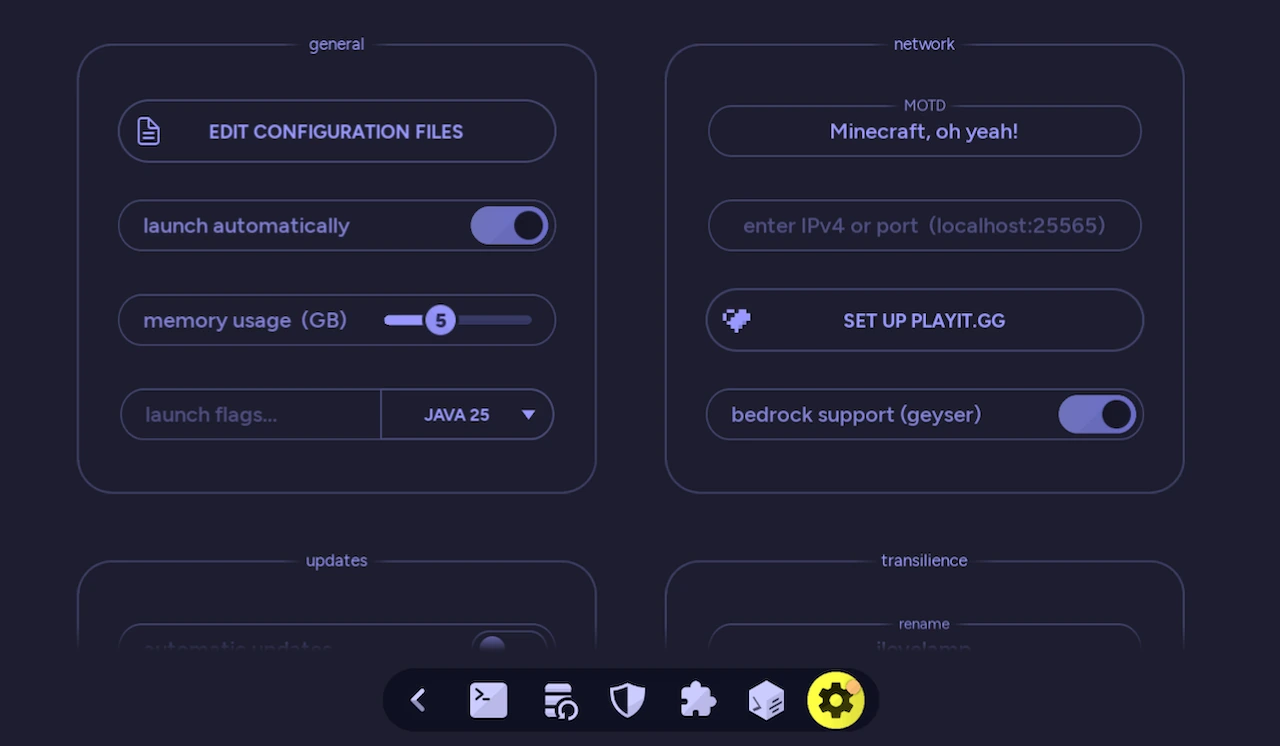
General
Section titled “General”| Edit Configuration Files | Open the configuration editor to modify server.properties and other supported configuration files |
| Launch Automatically | Start this server automatically when auto-mcs launches |
| Memory Usage (GB) | Set the maximum memory allocated to the server, or leave the slider on Auto for automatic allocation based on system resources |
| Launch Flags | Specify custom Java arguments, including JVM tuning and memory flags |
| Java Version | Select the Java version used to launch this server, or choose Auto to use the recommended version |
| Open Server Directory / Download Server | Open the server folder using the top-right icon, or download a fresh server back-up to your computer when connected via Telepath |
Java and launch flags
Section titled “Java and launch flags”By default, auto-mcs selects a Java version based on your Minecraft version and server distribution. The Java drop-down lets you override this when necessary, although an incompatible version may prevent the server from starting.
The launch flags field accepts additional JVM arguments such as -Xms and -Xmx. If you specify -Xmx here, the memory slider reflects that value instead of its own allocation. Changing the slider will remove the custom -Xmx flag, so the two settings don’t conflict.
Network
Section titled “Network”| Message of the Day (MOTD) | Change the description displayed for your server in the Minecraft multiplayer list |
| IPv4 / Port | Configure the server’s bind address and port, using 25565 by default; see Networking |
| Set up playit.gg / Enable Proxy | Link and manage a playit.gg tunnel so players can connect without port forwarding |
| Bedrock Support (Geyser) | Install or remove the Geyser-related add-ons to allow Bedrock players to connect on supported server versions and distributions; see Geyser |
Updates
Section titled “Updates”| Automatic Updates | Allow auto-mcs to automatically update the server when a new supported release is available |
| Update to … | Install an available update, or show that the server is already up to date; see updating servers |
| Change ‘server.jar’ | Change the Minecraft version or server distribution through the migration wizard |
Transilience
Section titled “Transilience”| Rename | Enter a new server name and press EnterEnterEnter to apply it while the server is stopped |
| Change World File | Import another world or generate a new one using the world selection screen |
| Delete Server | Permanently remove the server after confirmation, saving a final back-up first if there’s enough available disk space |
Configuration editor
Section titled “Configuration editor”On Vanilla servers, Edit ‘server.properties’ opens the file directly. Other server distributions use Edit Configuration Files, which opens a searchable browser of the server’s configuration files, grouped into folders. Click a file to open it in the appropriate editor.
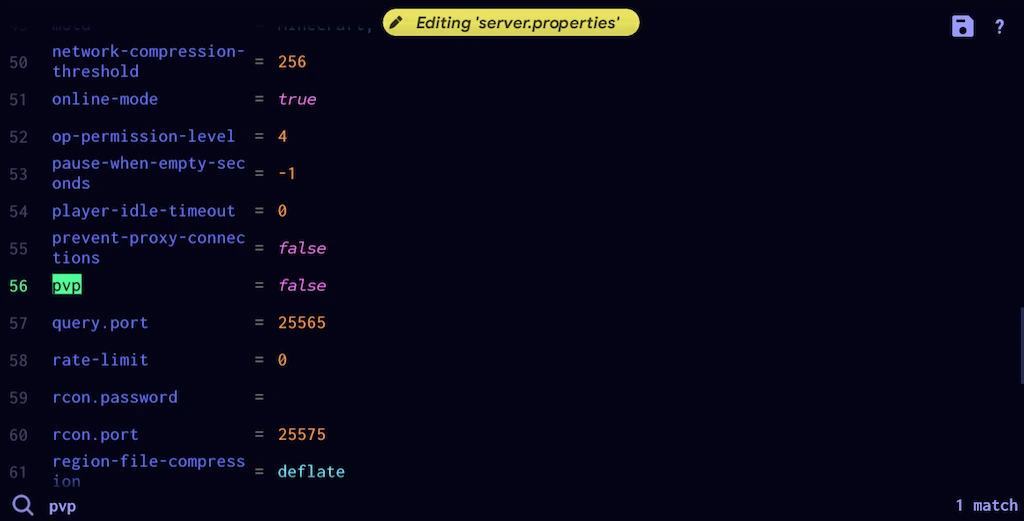
The editor supports properties/INI, TOML, YAML, JSON, JSON5, HOCON, and other recognized text configuration formats. Structured files use a key/value interface, and you can search their contents, edit values, or toggle true and false with SpaceSpaceSpace.
Use Ctrl+F⌘+FCtrl+F to search, Ctrl+Z⌘+ZCtrl+Z to undo, Ctrl+Y⌘+YCtrl+Y to redo, and Ctrl+S⌘+SCtrl+S to save. You can also use Save & Quit in the editor. For Telepath servers, the file is downloaded for editing and uploaded back to the remote server when saved.
Updates and migration
Section titled “Updates and migration”When a newer Minecraft version is available, the Updates group displays an Update to button showing the target version. Select it to begin updating the server. Otherwise, the button displays Up to Date. Updates require an internet connection and the server must be stopped.
To change the distribution or choose a specific version, click Change ‘server.jar’. The migration wizard lets you select a server type, such as switching from Vanilla to Paper, followed by the Minecraft version you want. auto-mcs validates the selection, installs the appropriate server software, attempts to migrate compatible add-ons, and creates back-ups during the process.
If the server fails to start after updating or migrating, see Server Troubleshooting.
Modpacks use a different update process, replacing the pack as a whole instead of updating individual mods. See Modpack updates for details on managed and manually imported packs.
Changing worlds
Section titled “Changing worlds”Click Change World File under Transilience to select an existing world folder or generate a new world instead. When creating a world, you can configure its seed and choose an available world type, such as Normal or Superflat, depending on the Minecraft version.
The server must be stopped before changing worlds. auto-mcs saves a back-up, removes the current world’s files (including its Nether and End folders where applicable), then imports the selected world or prepares the new one. It also updates the relevant values in server.properties.
You can import a world onto a Telepath server too; auto-mcs uploads the selected folder to the remote computer before applying the change.