
Settings
The global settings menu provides a collection of options for customizing auto-mcs and managing the app deployment. This menu is divided into two categories: General and Management. Most changes are saved automatically, and some settings may require restarting the app to take effect.
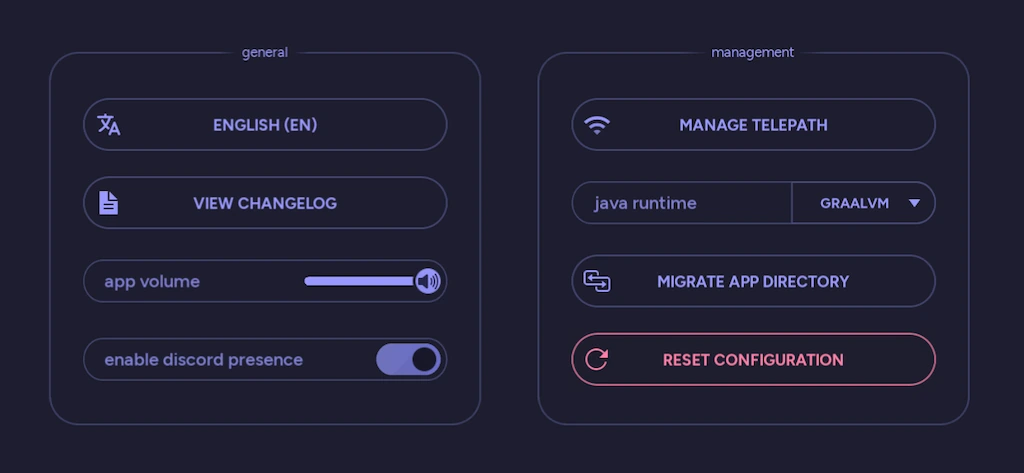
To access this screen, expand the Settings button in the bottom right corner of the main menu, or search for Settings or any of the options from anywhere else.
General
Section titled “General”| Language | Change the interface language of auto-mcs |
| View Changelog | Opens the changelog for the latest release in your browser |
| App Volume | Adjusts the volume of UI sounds, from 0 (muted) to 100 |
| Enable Discord Presence | Displays your activity on Discord through Rich Presence |
Language
Section titled “Language”This button displays the current locale and opens the language selection screen. Selecting a language applies it immediately and saves your preference persistently.
By default, auto-mcs will attempt to select a language based on the system’s locale. Once you select a specific language, that preference is remembered across launches.
App volume
Section titled “App volume”The volume slider controls the gain of the UI sound effects, including button interactions, notifications, and launch sounds. Moving the slider all the way to the left will mute the UI.
Discord Rich Presence
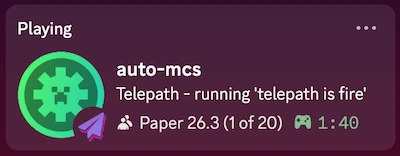
Section titled “Discord Rich Presence”When enabled while a Discord client is open, auto-mcs will display your activity in your Discord profile. Disabling this setting will prevent auto-mcs from appearing on your profile:
Management
Section titled “Management”| Manage Telepath | Opens the Telepath manager to configure host and client access |
| Java Runtime | Select the preferred Java distribution managed by auto-mcs |
| Migrate App Directory | Relocates the persistent app data to another directory |
| Reset Configuration | Restore global configuration defaults and restart the app |
| Open Directory | Open the app data directory (folder icon in the top-right) |
Telepath
Section titled “Telepath”Select Manage Telepath to open the Telepath manager. From here, you can share the current instance, pair another instance, and manage remote access.
A desktop installation of auto-mcs can act as a host, a client, or both.
See Telepath for the framework overview, Pairing for connecting instances, and Security for access restrictions and authentication.
Java runtime
Section titled “Java runtime”auto-mcs includes a Java manager for obtaining and maintaining the runtimes needed by different Minecraft versions and server distributions.
This dropdown allows you to select the preferred Java distribution used by the manager. Available providers depend on the operating environment and system architecture.
| Distribution | Vendor ID | Description |
|---|---|---|
| Oracle | oracle | Reference HotSpot implementation (default) |
| GraalVM | graalvm | Aggressive JIT optimizations that may improve tick performance on CPU heavy servers |
| Temurin | temurin | A good choice for everyday Vanilla, Paper, and modded servers |
| Zulu | zulu | Extensive legacy Java and CPU architecture support; especially useful for older modpacks and unusual hardware |
| Corretto | corretto | Amazon-tuned OpenJDK with stability and GC patches; optimized for AWS and ARM hardware |
Changing the provider updates the global configuration automatically. After changing this setting, the next server operation will install and utilize the selected distribution for all servers. The Vendor ID is used for setting this property in headless mode.
See this guide for more information on Java distributions.
Migrate App Directory
Section titled “Migrate App Directory”By default, auto-mcs stores its servers, back-ups, configurations, and tools in your user profile. This tool is provided if you’d prefer to store this data in another directory, or disk. This process relocates the persistent app data while preserving the directory structure expected by auto-mcs.
- Select Migrate App Directory from the Management category
- Review the warning and confirm that you want to proceed
- Select the destination directory
- Wait for the migration to finish and auto-mcs to reopen
Before migrating, auto-mcs performs several checks, including verifying that the destination is writable, that the source can be accessed, and that the destination has enough free space.
The destination must have sufficient space for the existing data, with additional space reserved for the migration. The current implementation requires the size of the source directory, plus approximately 15 GiB of available storage.
After migration, auto-mcs maintains access through its original expected data path, using a symbolic link on Linux/macOS or an appropriate link/junction on Windows.
To move the data back to its default location, use the same migration tool and select a location within the original app data directory, or continue without a selection.
Reset configuration
Section titled “Reset configuration”If you want to restore the default preferences, choose Reset Configuration.
After confirmation, auto-mcs restarts with the --reset launch flag. This clears all cached data, and restores preferences such as the language, volume, window settings, Java vendor, and the Telepath host configuration to defaults.
You can also reset the configuration manually by starting auto-mcs with --reset, as described in Launch options.
app-config.json
Section titled “app-config.json”Global preferences are stored in the app’s configuration file:
Config/app-config.jsonThis path is relative to the auto-mcs app data directory, not the executable. This file contains all the above preferences, along with window geometry, update checks, and the Telepath host configuration.
Data structure reference
| Attribute | Type | Default | Description |
|---|---|---|---|
fullscreen | boolean | false | Whether the window opens maximized |
geometry | object | {} | Saves the position and size of the window |
┗ pos | array | — | Last position on screen [x, y] |
┗ size | array | — | Last dimensions [width, height] |
auto_update | boolean | true | Checks for updates and asks to install on launch |
locale | string | null | null | The language in the app. Set to null to use the system’s language |
master_volume | integer | 100 | Volume of UI sounds in percent, from 0 (muted) to 100 (maximum) |
sponsor_reminder | integer | null | null | Dates the sponsorship reminder on the splash screen |
discord_presence | boolean | true | Shows your auto-mcs activity in your Discord profile through Rich Presence |
prompt_feedback | boolean | true | Prompts for feedback after launching your first server |
enable_ip_lookup | boolean | true | Shows public IP above the console for convenience, and resolves player locations in the Access Control Manager |
java_vendor | string | "oracle" | Selects preferred Java distribution for running servers |
telepath_settings | object | See nested attributes | Configure the Telepath API |
┗ enable-api | boolean | false | Enables the API |
┗ api-host | string | "0.0.0.0" | Specifies which network interface accepts connections. 0.0.0.0 defaults to all interfaces |
┗ api-port | integer | 7001 | Which TCP port the API listens on |
┗ show-banners | boolean | true | Displays UI notifications when remote actions are performed |
┗ id_hash | string | null | null | Identifier associated with this instance |
ide_settings | object | See nested attributes | Configures the amscript IDE |
┗ fullscreen | boolean | false | Whether the IDE opens maximized |
┗ font-size | integer | 15 | Adjusts the font size |
┗ geometry | object | {} | Saves the position and size of the window |
┗ pos | array | — | Last position on screen [x, y] |
┗ size | array | — | Last dimensions [width, height] |
Headless settings
Section titled “Headless settings”Headless mode uses the same app data and global configuration as the desktop interface. It does not require a separate configuration file.
Some settings, such as selecting a Java vendor or managing Telepath users, are available through dedicated headless commands. See the headless command reference for more details.