
Development
The amscript engine is built on top of Python 3.12 with additional syntax, objects, and event declarations. The engine and its dependencies, and additions like the IDE, are all included with auto-mcs; you don’t need to install Python separately to write, edit, or run .ams scripts.
This guide covers the general process of managing scripts and an overview of the development workflow. If you’re unfamiliar with Python, check out this guide for the basics. For the amscript-specific syntax, objects, and events, see the API reference.
Installation
Section titled “Installation”Open amscript from a server’s taskbar. The Script Manager has three ways to add scripts:
| Download | Browse the amscript library, and view & download scripts |
| Import | Select, or drag and drop an existing .ams file into the Script Manager |
| Create | Create a new script and open it in the IDE |
Download scripts
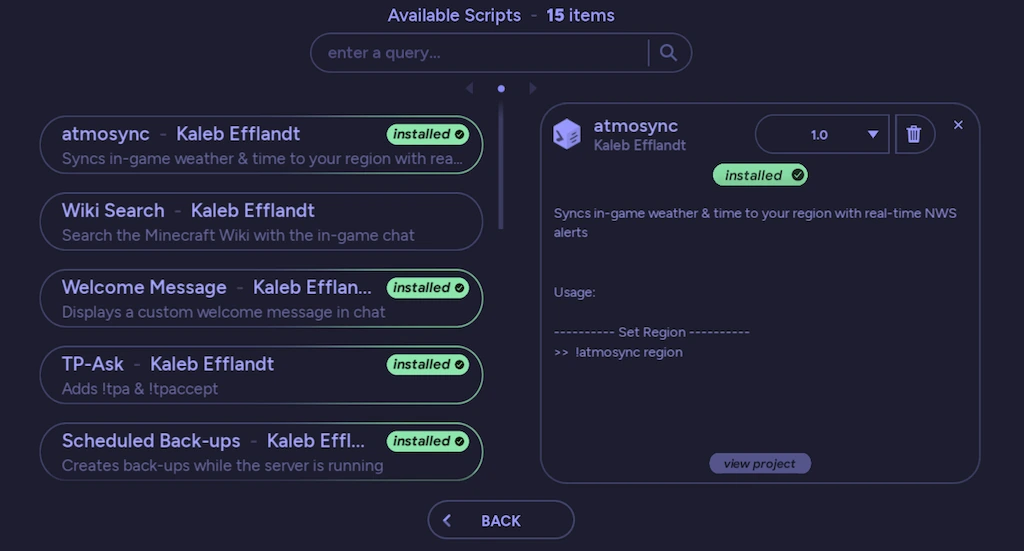
Section titled “Download scripts”The easiest way to get started is by clicking Download and grabbing one of the existing library scripts to use, edit, or extend. There’s a plethora of additional functionality to extend your server with from syncing back-ups to the cloud, AFK moderation, or even adding an entire economy system.
Create scripts
Section titled “Create scripts”If you’re feeling adventurous, select Create, enter a name, and choose Create in IDE. auto-mcs creates a .ams file with a header and a sample script.
A simple script looks like this:
#!# title: Hello World!# author: Example# version: 1.0# description: Greets players the first time they join#!
@player.on_join(player, data):    if player not in server.usercache:        player.log(f'Welcome to {server}, {player}!')
So, what’s going on here?
Section titled “So, what’s going on here?”- The header is the top section, enclosed in
#!. This metadata is what shows up in the Script Manager - You can add ordinary Python functions, imports, and variables below the header. The
serverobject is provided by amscript as a global reference. Player events dynamically create aplayercontext within their event block. These do not need to be imported - The
@player.on_join()event will execute its event block for a player when they join the server. In this case, it will privately send a message to their chat the first time they join the server server.usercachecontains all players that have ever joined the server, loaded from the server’susercache.json. A new player who has never joined will not be in the cache. In this script, that’s the condition that sends the welcome message; returning players will not be greeted again- Both objects support special string formatting. Using them in an
f"..."string will substitute their names. To be verbose, you can also useserver.nameorplayer.name
And when joining the server:
Section titled “And when joining the server:”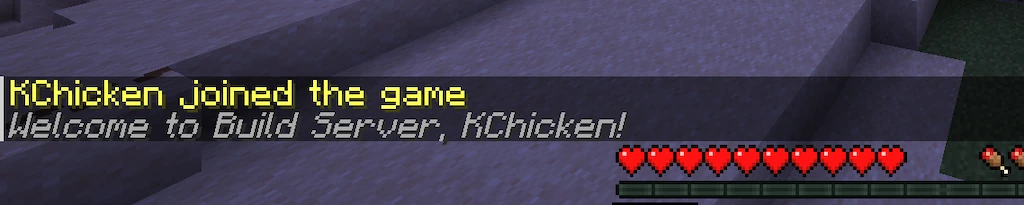
Management
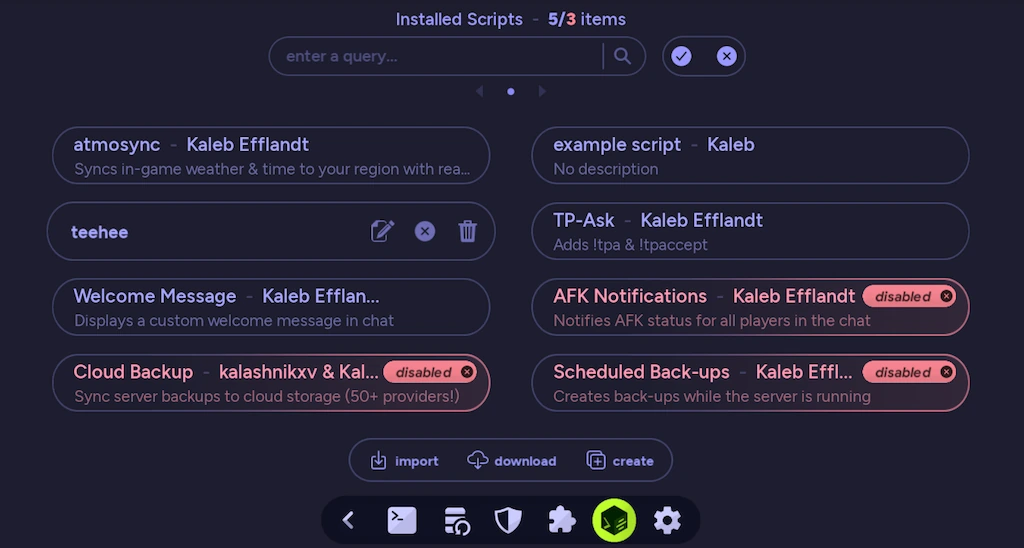
Section titled “Management”The Script Manager lists the scripts installed on the current host. Use the search bar to find a script, or click one to view its details.
Controls
Section titled “Controls”| Enable / Disable | Choose whether a script runs on the current server |
| Enable All / Disable All | Enable or disable every script on the current server, regardless of the current search filter |
| Edit | Edit this script in the built-in IDE |
| Delete | Globally delete the .ams file from the host after confirmation |
| Open Directory | Open the shared script folder on the local computer |
| Reload Scripts | Recompile enabled scripts on the current running server without a restart |
Reloading
Section titled “Reloading”amscript compiles enabled scripts when the server starts. Editing a script or changing which scripts are enabled doesn’t update the engine runtime automatically, however, it can easily be hot-reloaded.
To hot-reload the runtime after making changes, click Reload Scripts in the top-right of the Script Manager, or run !ams reload through the Console or in-game chat with operator permissions. This stops and reconstructs the runtime from the latest script changes without a restart.
Runtime errors
Section titled “Runtime errors”Compilation errors, like malformed syntax, will prevent a script from compiling at runtime. This will show an error that not all scripts were loaded successfully, and prevent the script from being loaded until the exception is resolved.
Additionally, valid syntax doesn’t guarantee that a script will run successfully. For example, latent errors like converting a chat message to a number with float() inside an event block will raise a ValueError when a player sends text, instead of showing in the IDE. Unhandled errors will halt event or function execution, but will not halt the script at runtime like compilation errors.
These errors appear in the server Console with the script name, exception, and source line. The IDE can statically detect malformed syntax while editing, but it can’t predict latent errors inside an event or function before the code runs. It’s important to keep both forms of errors in mind.

Data Persistence
Section titled “Data Persistence”amscript provides persistent Python dictionaries to store information on disk between server restarts or script reloads. Scripts can store data for the server itself with server.persistent, or for individual players with player.persistent.
Both share the same persistence file in the server’s amscript directory, but the data is organized separately:
server.persistent | Shared data for the current server |
player.persistent | Data for a specific player on the current server, identified by UUID when available |
For instance, you could store a counter for how many times a player has joined:
@player.on_join(player, data):    if not player.persistent.get('example'):        player.persistent['example'] = {'joins': 0}
    data = player.persistent['example']    data['joins'] += 1    player.log(f'You have joined {data["joins"]} times!')
The example dictionary is initialized the first time the player joins, and reused whenever they return. Other players maintain their own independent values. Every instantiation of a player object will reflect the latest configuration.
Storage
Section titled “Storage”Each server stores its persistent data in Servers/<server>/amscript/pst-conf.json, relative to the app data directory. The file contains a server dictionary, and a player dictionary with individual records keyed by UUID, or by username for legacy compatibility.
Persistent data is shared between every script enabled on the same server. The namespace is globally scoped, so use identifiable keys to keep unrelated scripts from overwriting each other’s data.
The storage supports JSON-compatible data, along with automatic serialization for amscript objects. For example, Custom Waypoints persists player coordinates, while Inventory Loadouts stores item snapshots with their associated data.
Files and libraries
Section titled “Files and libraries”The host’s shared scripts are stored in Tools/amscript, relative to the app data directory. Each server keeps a unique script configuration to track which ones are enabled.
| Location | Description |
|---|---|
Tools/amscript/*.ams | Installed amscript files shared by the host |
Tools/amscript/libs/ | Custom Python modules and third-party packages available to scripts |
Tools/amscript/util/ | Third-party binaries available to scripts |
Scripts can use standard Python libraries and supported external packages. They can also store data between server runs using amscript’s persistent server and player attributes, as demonstrated by Custom Waypoints, Inventory Loadouts, and Dynamic Shop in the library.
External modules
Section titled “External modules”You can place your own .py modules in Tools/amscript/libs, or install third-party packages from PyPI using pip.
From the operating system’s terminal, install packages to the corresponding directory:
Windows installation
Section titled “Windows installation”pip install --target "%appdata%\.auto-mcs\Tools\amscript\libs" <package-name>Linux installation
Section titled “Linux installation”pip install --target "$HOME/.auto-mcs/Tools/amscript/libs" <package-name>macOS installation
Section titled “macOS installation”pip install --target "$HOME/Library/Application Support/auto-mcs/Tools/amscript/libs" <package-name>Replace <package-name> with the package you want to install. If you’ve migrated the app data directory, you can still use these paths because of the symlink. Packages with native extensions must be compatible with the Python runtime and operating system used by auto-mcs.
Custom modules
Section titled “Custom modules”Ordinary Python modules can define reusable functions and classes, which .ams scripts can import. A .py file can’t declare amscript events directly, but you can pass objects such as server or player to its functions to use their features externally.
For example, the library’s Discord Bot uses discord.py, while atmosync uses external astronomy and timezone packages. These dependencies are installed alongside their scripts when downloaded from the built-in library.