
Back-ups
Back-ups are often an overlooked but imperative practice. Complexity is one of the main barriers to creating and maintaining a routine. Because of this, auto-mcs makes it easy to save and restore snapshots without managing the files yourself.
Save a back-up
Section titled “Save a back-up”Creating a back-up is as easy as opening Back-ups from the taskbar and clicking Save. That’s it!
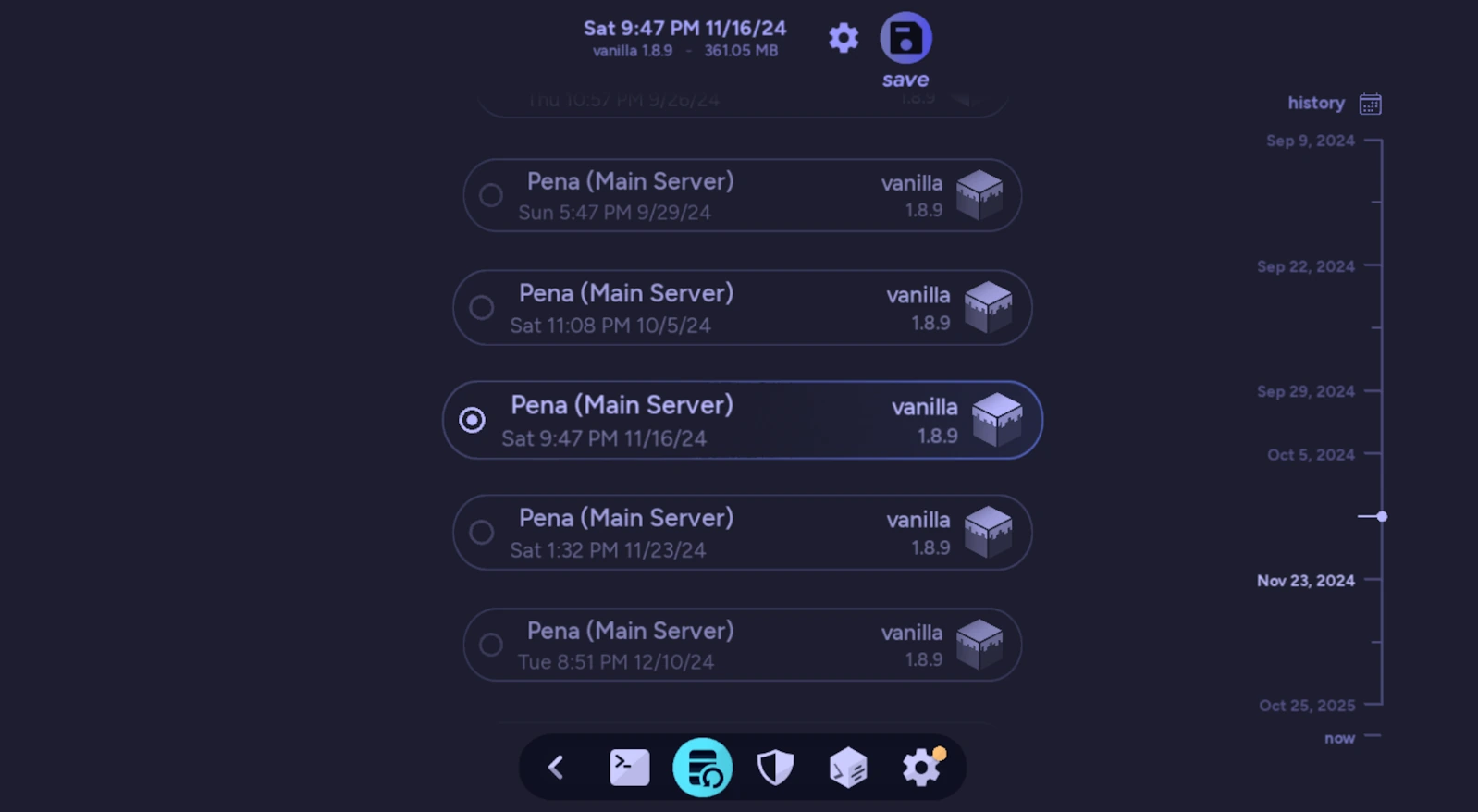
Saving a back-up creates a snapshot in time of the entire server directory. This includes but is not limited to:
- all auto-mcs settings, server type/version, all world files, access control, all add-ons and state, logs,
server.properties, and other configuration files
Since amscript files are installed globally, these are not saved in back-ups. Their enabled status and persistent script data are saved, however.
By default, when saving, auto-mcs will purge the oldest back-up in the configured directory to preserve disk space. To configure this behavior, see Maximum Back-ups below.
Additionally, it’s important to back up your back-ups in case something happens to your computer. One of the easiest ways to do this is if you have a NAS or cloud-hosted storage service. Click Migrate Back-up Directory in the Back-up Manager and select a subfolder in OneDrive, a network share, Dropbox, Google Drive Desktop, etc. You can also download the “Cloud Backup” amscript from the Script Manager to automate this process.
Restore a back-up
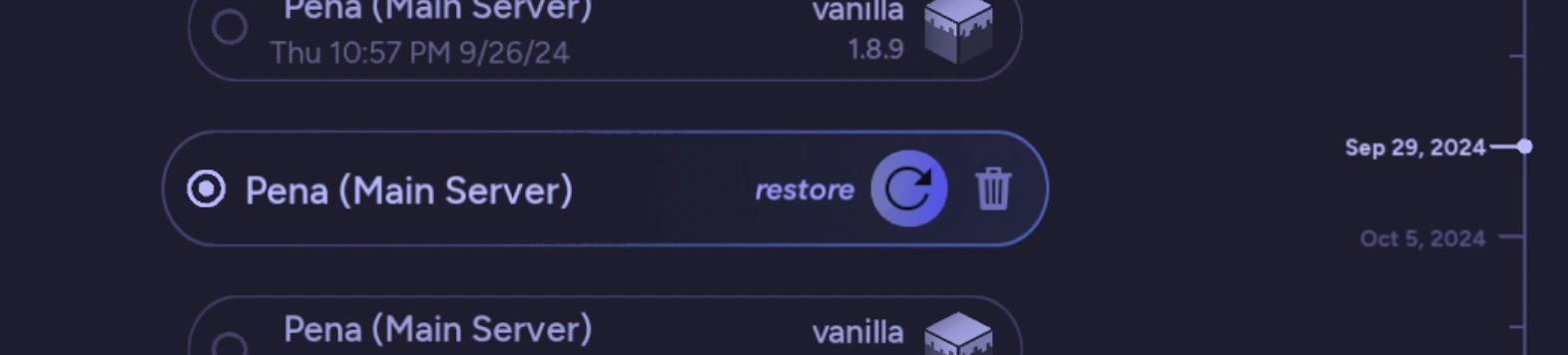
Section titled “Restore a back-up”Restoring a back-up is simple as well. Click on the snapshot you wish to restore from, hover it, and click the restore button. You’ll be prompted to confirm. The most recent back-up is at the bottom of the list, and is selected when opening the Back-up Manager. This will restore your server in its entirety to the date & time it was saved.
If your server is deleted or you wish to move a server to a different computer, you can import a back-up file through importing a server.
Settings
Section titled “Settings”Click the Settings icon in the Back-up Manager to configure how your server’s back-ups are stored and managed. The top of this screen shows the latest back-up date, the number of saved back-ups, and their combined size.
| Automatic Back-ups | Automatically save a back-up after a normal server shutdown when enabled; skipped if the server crashes or there isn’t enough free disk space |
| Maximum Back-ups | Keep the newest 2–10 back-ups, deleting the oldest after a new back-up is saved if the limit is exceeded; move the slider all the way right to disable the limit |
| Log Retention (GB) | Limit stored server logs from 0.1–1.9 GB by removing the oldest completed log rotations after a successful back-up; move the slider all the way right to disable log cleanup |
| Open Back-up Directory | Open the folder where this server’s back-up archives are stored, using the folder icon in the upper-right corner (local servers only) |
| Migrate Back-up Directory | Choose a new location to store back-ups, and move existing archives and future ones to that location |
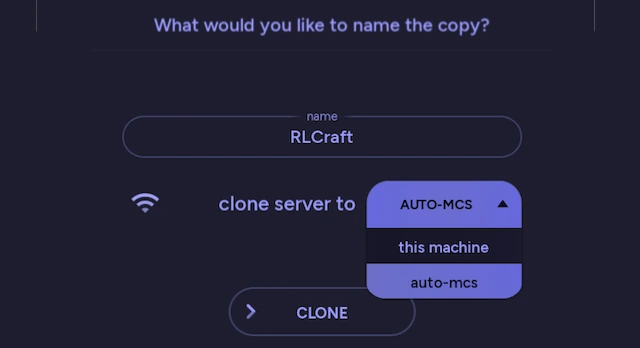
| Clone This Server | Create a separate copy of the server with a new name, including its files and settings |
Cloning
Section titled “Cloning”Cloning creates a separate copy of an existing auto-mcs server, either on your own computer or on another computer connected through Telepath. The original server remains untouched, and you can clone a local or remote server in either direction, or even remote to remote with multiple servers paired.
| Source | Destination | How it works |
|---|---|---|
| This machine | This machine | Creates a copy of the server locally |
| This machine | Telepath host | Uploads the local server and imports it to the remote host |
| Telepath host | This machine | Downloads the remote server and imports it on your computer |
| Telepath host A | Telepath host B | Downloads the server to your computer, then uploads and imports it on the other remote host |
| Telepath host A | Same Telepath host A | Creates a copy directly on the remote host |
Cloning first saves a back-up of the source server. The new server initially has an identical configuration. For this reason, it’s important to look over the configuration to ensure there are no conflicts, such as networking with certain plugins. The copied back-up is renamed for the clone and used to create its initial back-up. The original server’s existing back-up history isn’t transferred.
Automation
Section titled “Automation”From the Back-up Manager, you can enable automatic back-ups to save a snapshot of your server after it closes. It’s recommended to enable this setting if there’s enough storage space.
This functionality can further be expanded by creating custom behavior using amscript. For example, here’s a script that saves a back-up every hour when a player is present, and when the server is empty:
#!# title: Scheduled Back-ups# author: Kaleb Efflandt# version: 1.0# description: Creates back-ups while the server is running#!

def save_backup():    server.log_warning(f"Saving a back-up of '{server.name}', please wait...")    backup.save()    server.log_success(f"Back-up complete!")

# Save back-up every hour when players are connected@server.on_loop(interval=1, unit='hour'):    if server.player_list:        save_backup()

# Save back-up when a player leaves and the server is empty@player.on_leave(player, message):    if not server.player_list:        save_backup()